How to use CBAT
This document explains how to use CBAT.
Login
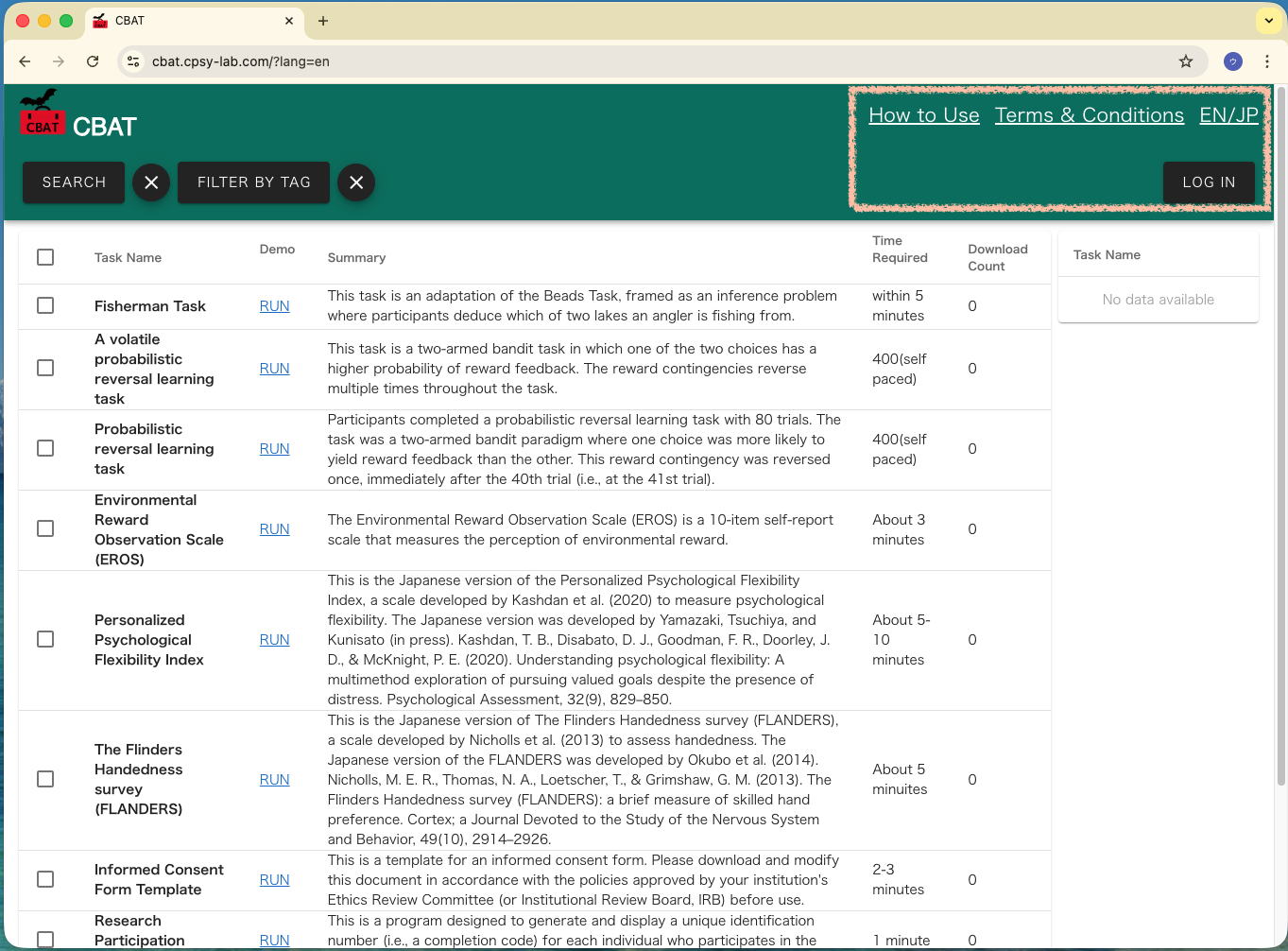
When you first open CBAT, you will see a screen like the one below. Please read the “How to Use” and “Terms of Service” in the boxed area before using the application. Click “EN/JP” to switch to the Japanese version. To use the service, please click “Login.”
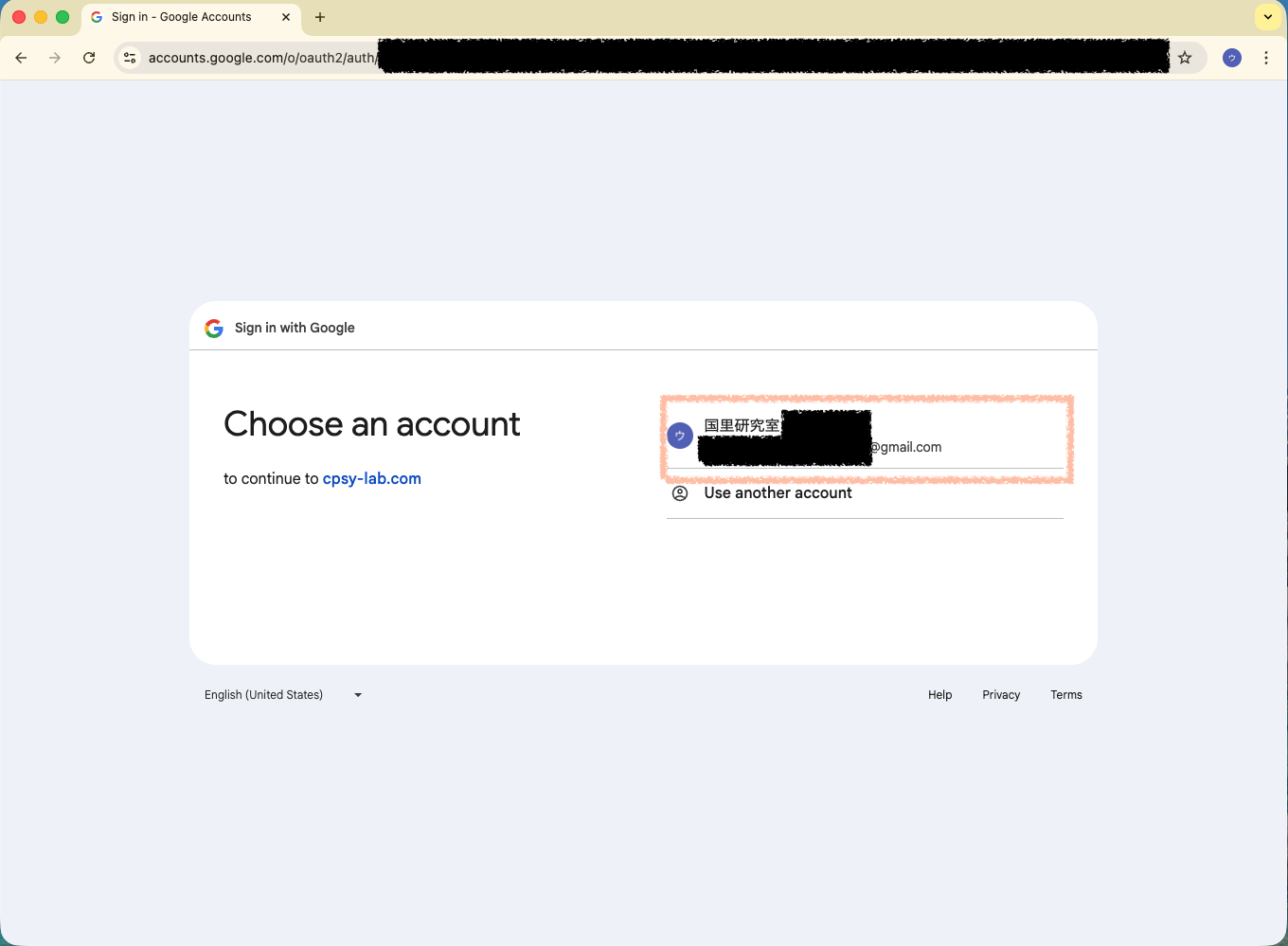
CBAT uses social login with a Google account. Please select your account you wish to link.
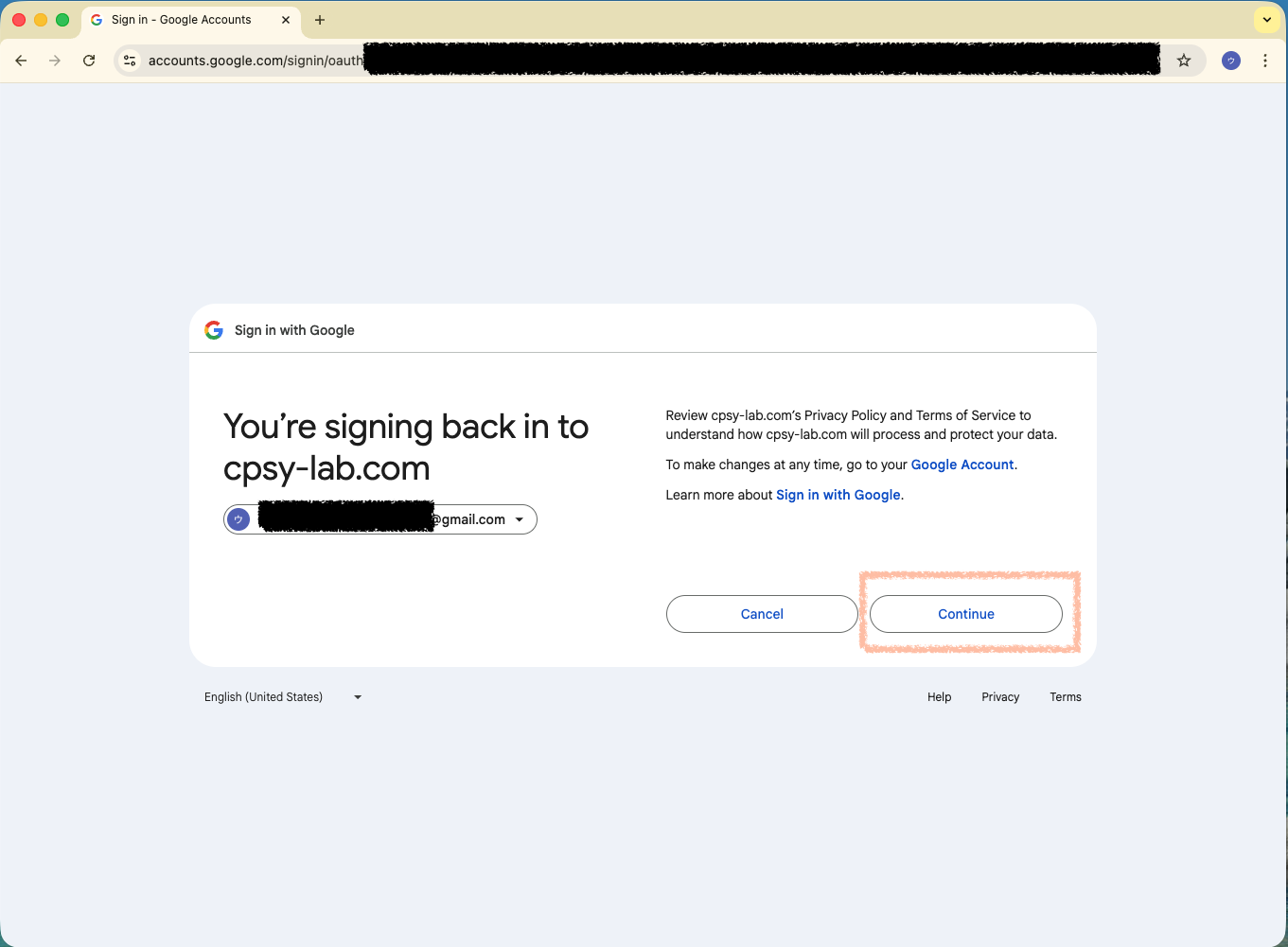
If you have read the Terms of Service linked on the initial screen, please click “Next.”
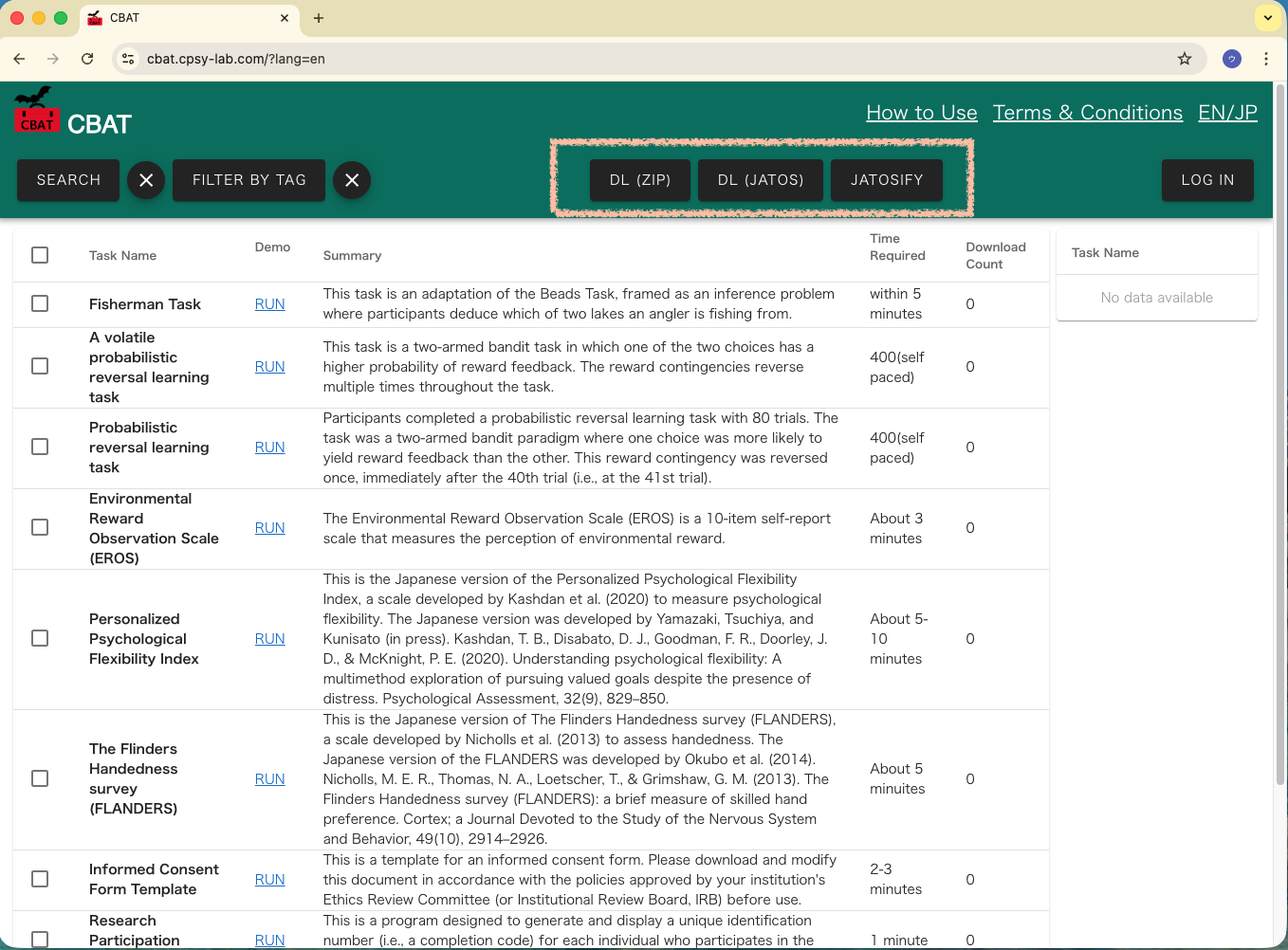
Once you are logged into CBAT, three buttons will appear: “DL (ZIP),” “DL (JATOS),” and “JATOSIFY.”
Checking the Tasks (Cognitive Tasks/Questionnaires) in CBAT
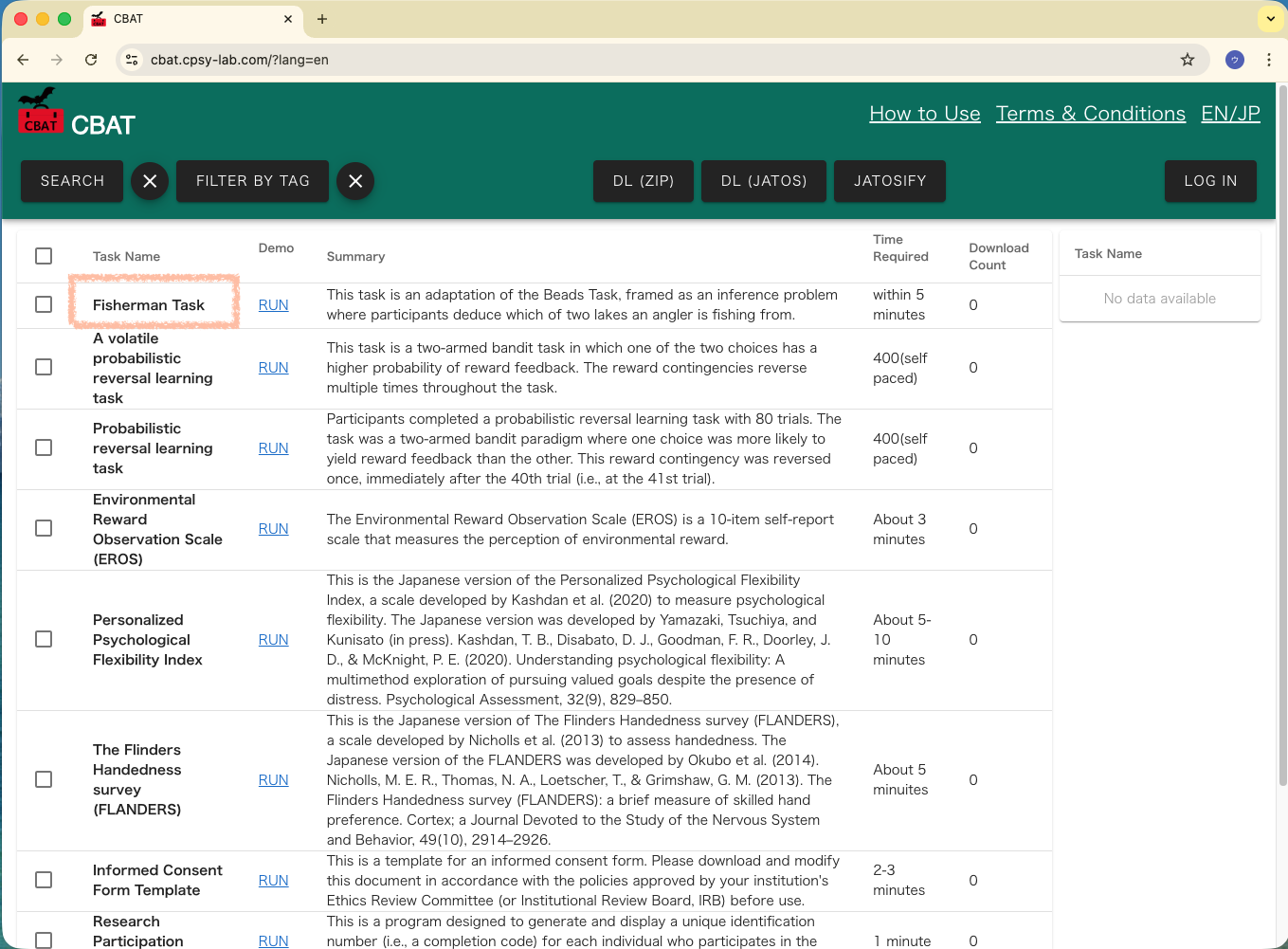
To see the tasks and questionnaires available in CBAT, double-click a name in the “Task Name” column.
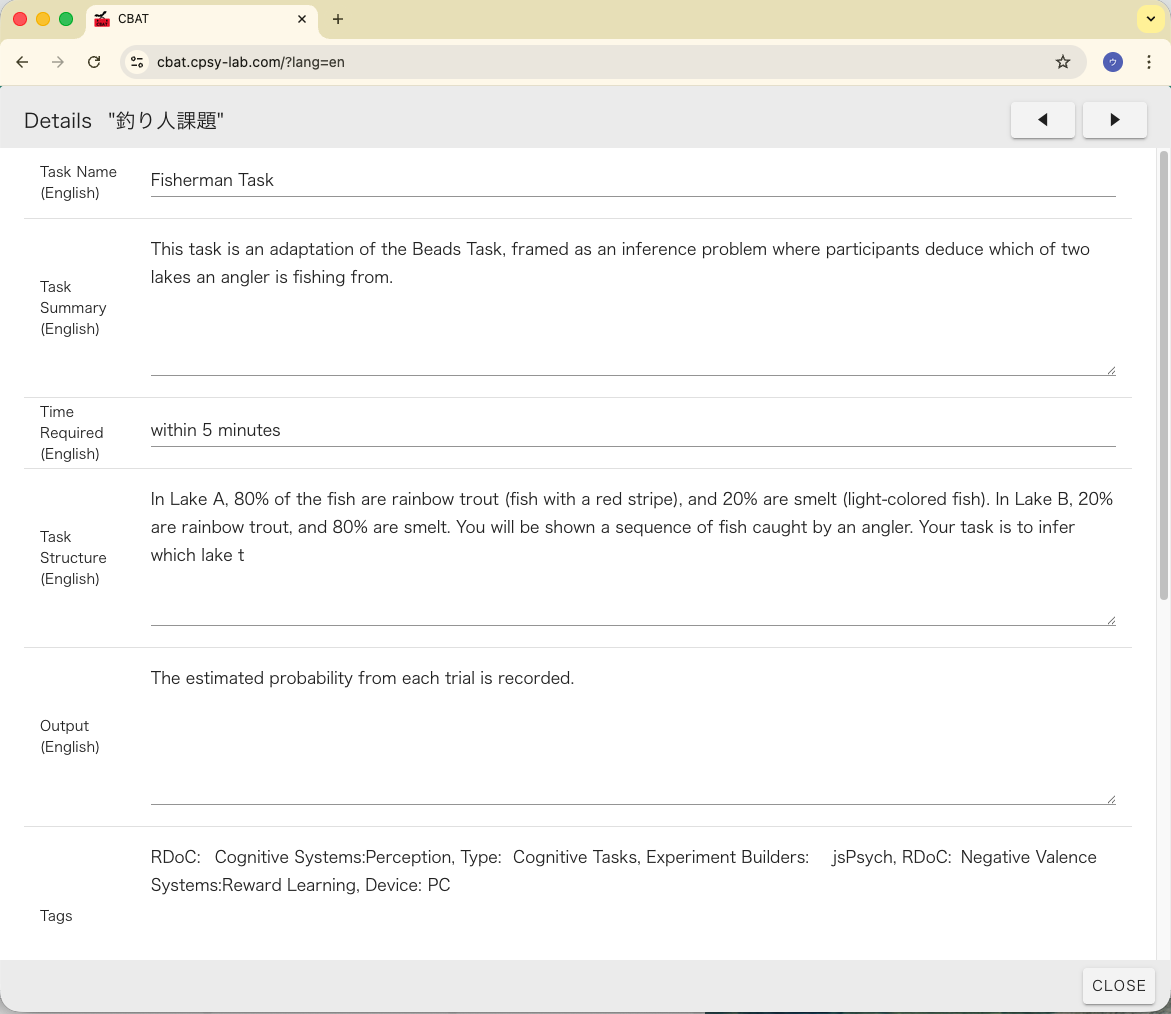
Double-clicking the task name will display detailed information about the task. In the Details, in addition to various information about the task, Research Domain Criteria (RDoC) Domains and Constructs are also listed in the tags.
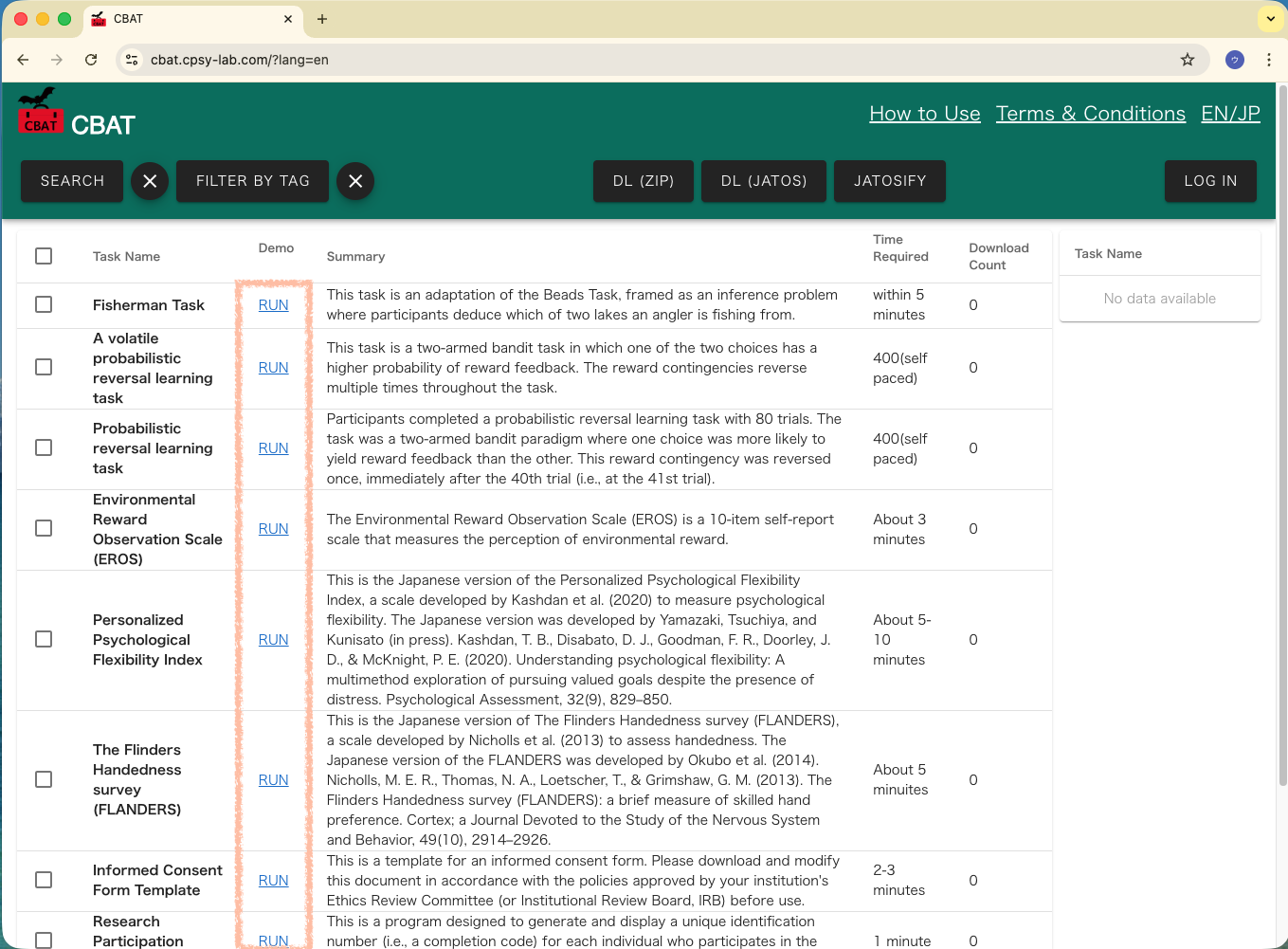
Click “RUN” in the “Demo” column to open a demo screen where you can try out the cognitive tasks, questionnaires, etc. Upon completion, the data will be downloaded as a CSV file.
Searching and Filtering Tasks in CBAT
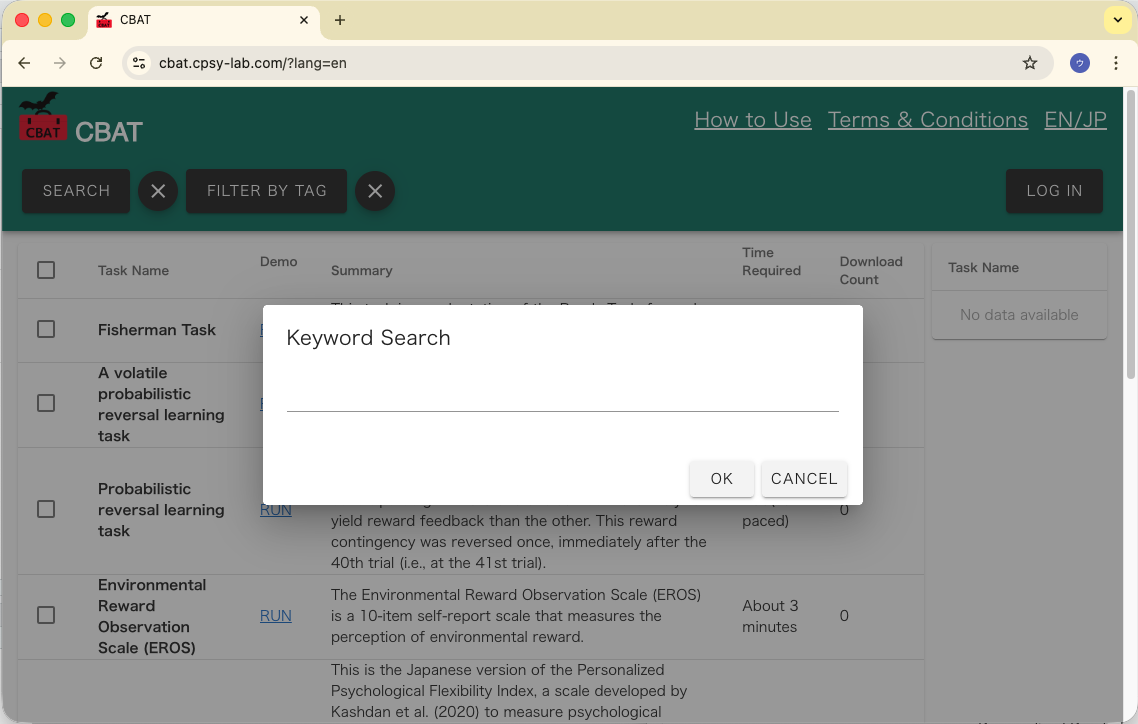
Clicking “SEARCH” opens the search window, where you can search for tasks listed in CBAT.
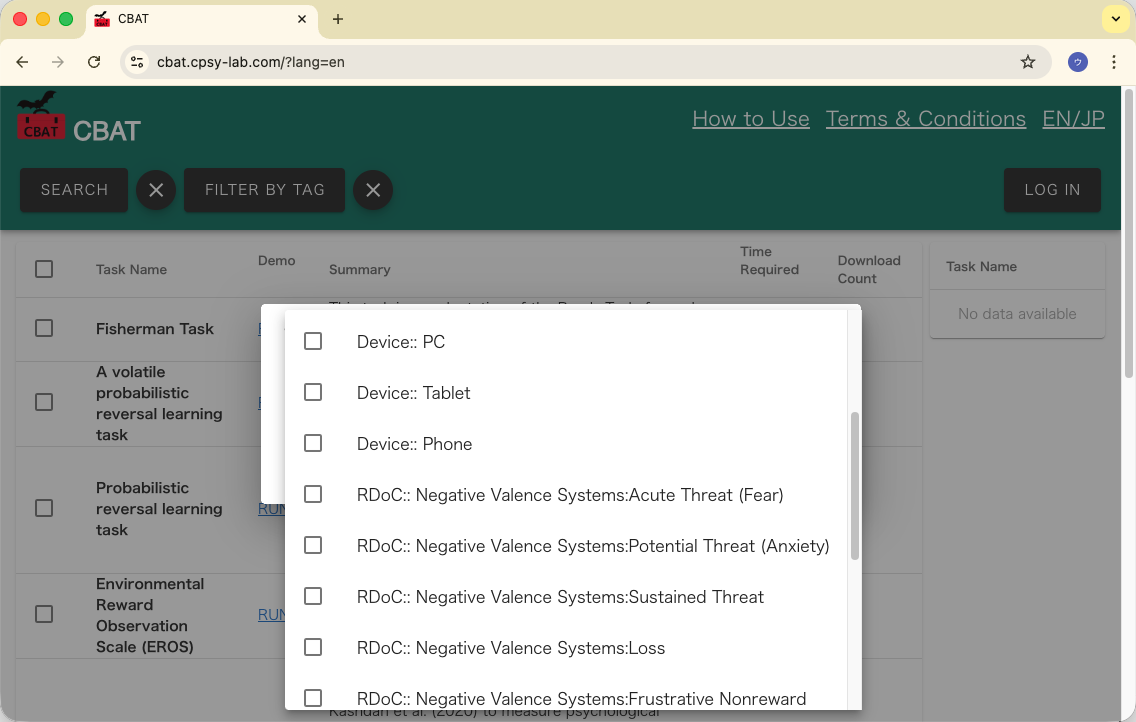
Clicking “FILTER BY TAG” opens the tag filtering window. This allows you to filter tasks based on Research Domain Criteria (RDoC) Domains and Constructs, as well as by compatible devices (e.g., PC, tablet, or mobile phone).
Downloading Tasks in CBAT
Select the tasks you want to use by checking the corresponding boxes. The selected tasks will be added to the “Task Name” panel on the right.
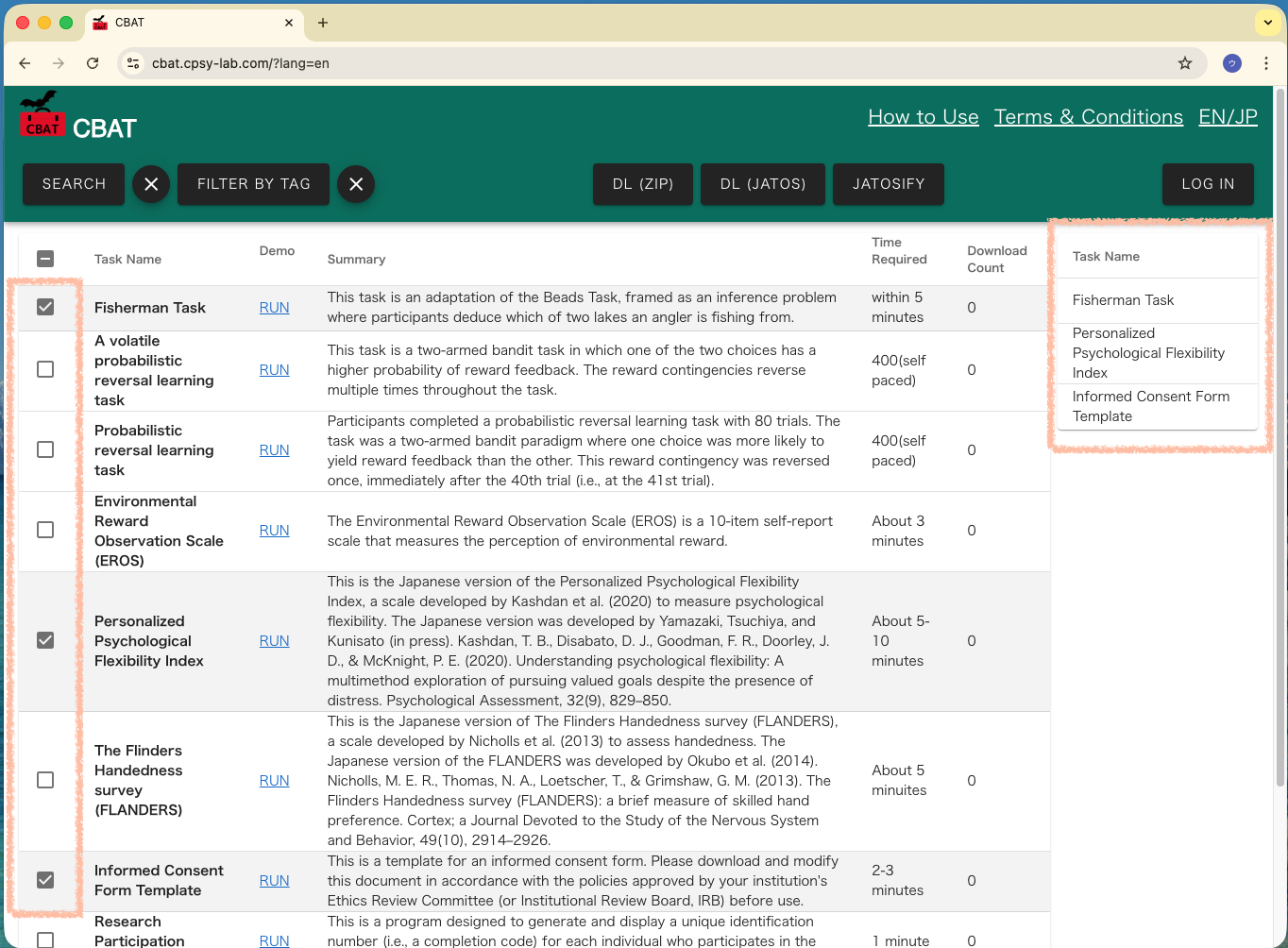
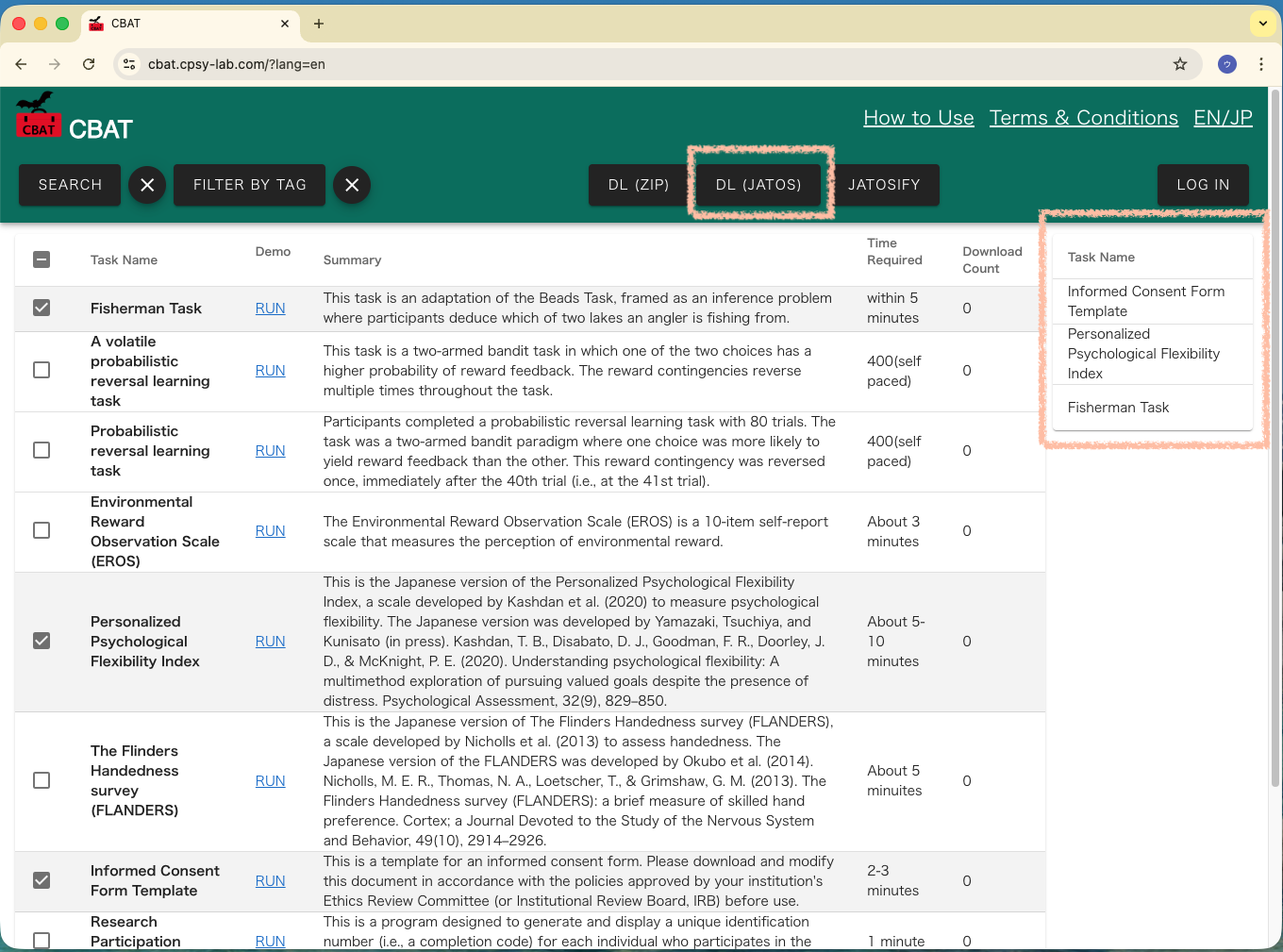
You can reorder the tasks listed in the “Task Name” panel on the right by dragging and dropping them. Arranging them in your preferred order will allow the experiment to run in that sequence. Once you have finished ordering the tasks, click “DL (JATOS).”
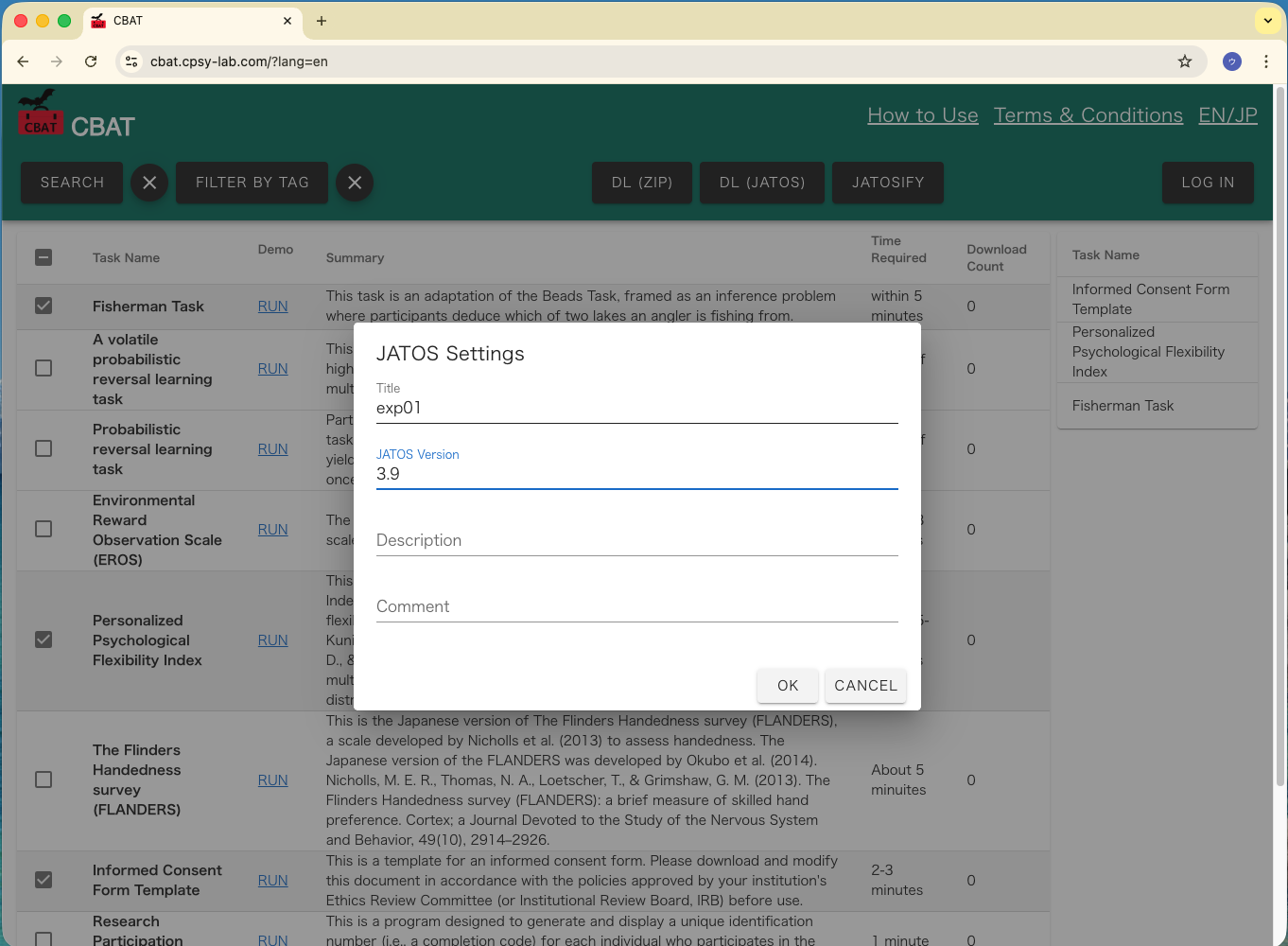
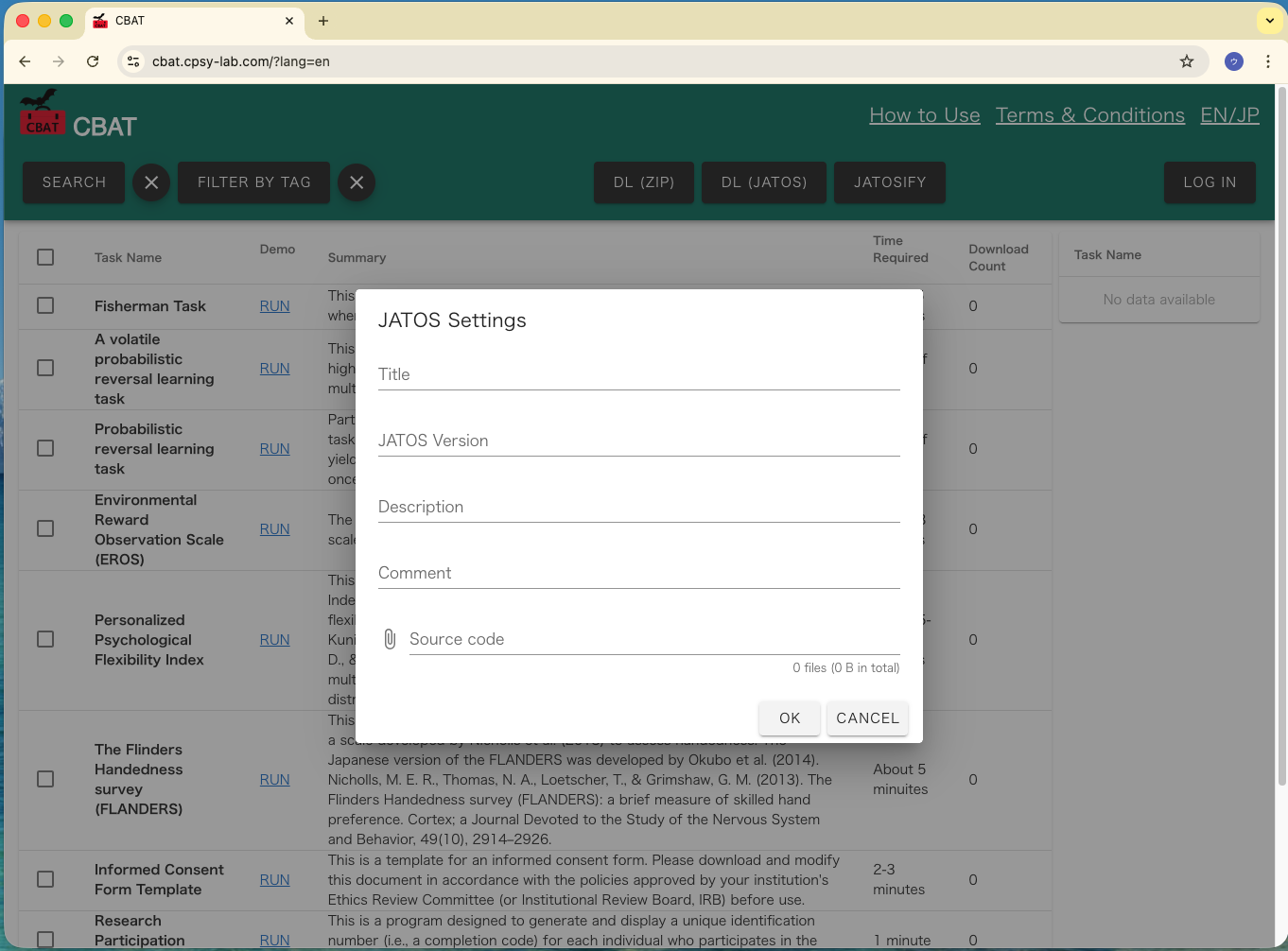
Next, configure the settings for the JATOS file (JZIP) you are downloading.
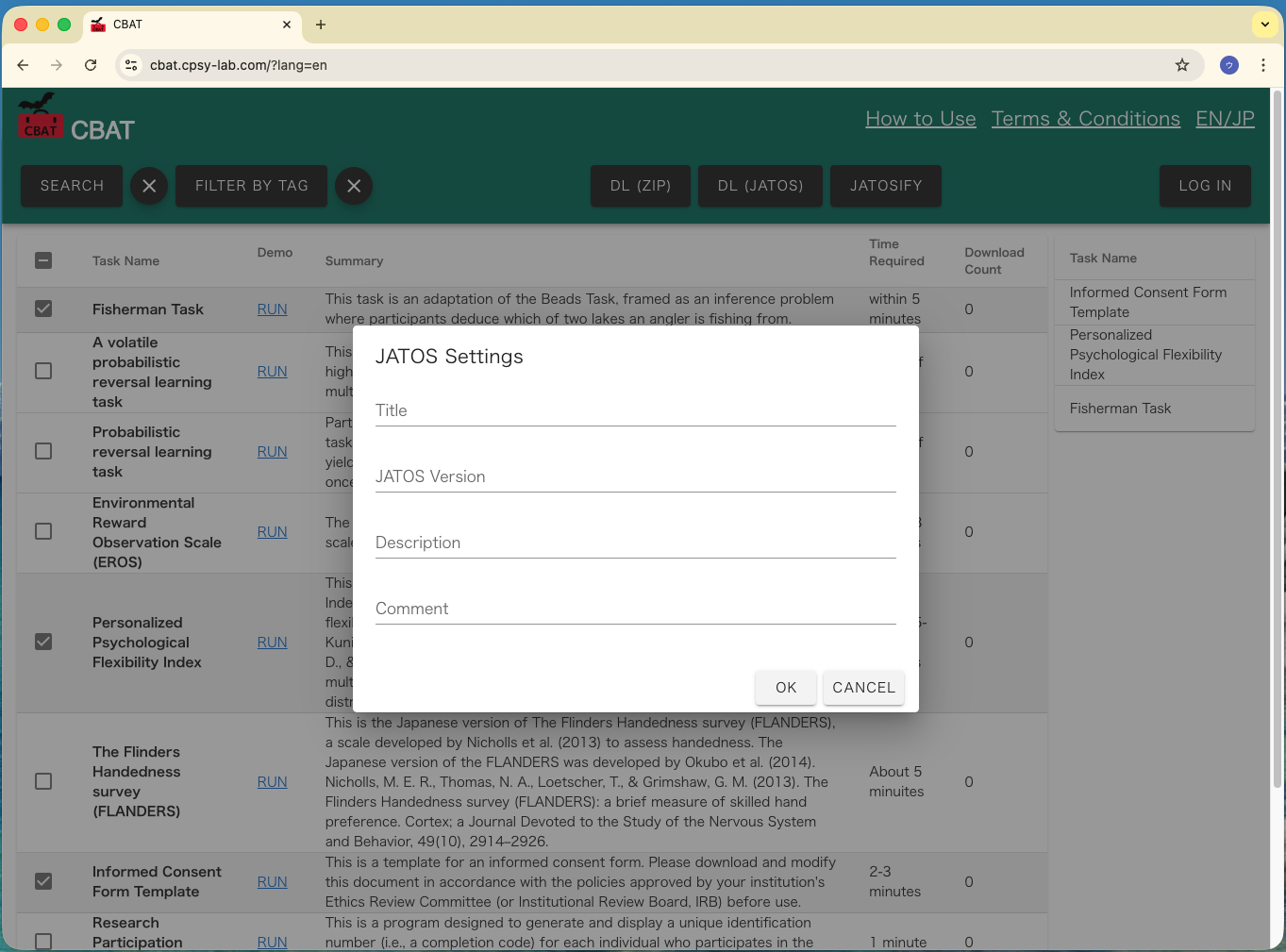
In the JATOS file (JZIP) settings, enter the experiment name in the “Title” field and the version number in the “JATOS Version” field, then click “OK.”
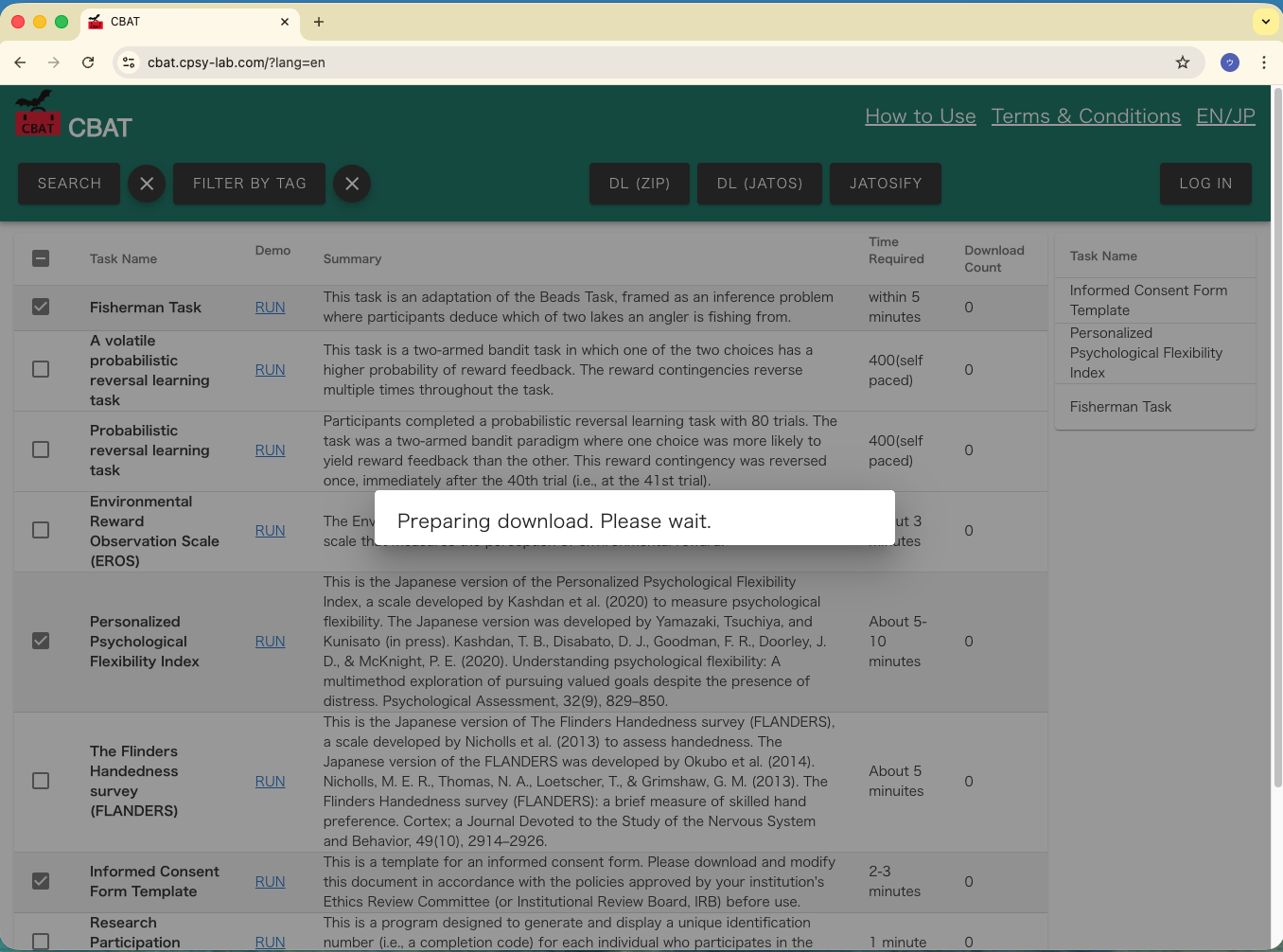
The download will begin. Please note that preparing and downloading the file may take some time.
Import the downloaded JZIP file into JATOS. For JATOS setup instructions, please refer to this link.
Note: As of October 2025, downloads may be very slow or time out due to server-related issues. We are planning to fix this in the future.
Creating Custom Informed Consent Forms and Questionnaires Not Included in CBAT
Preparing Custom Informed Consent Forms
Since informed consent forms vary depending on the study, we have provided a Shiny app below to generate custom consent forms in the CBAT format. Please modify the content to match your study’s consent form and click “Download Zip File” to download a zip file formatted for CBAT. Please be assured that any information entered into the app below is not saved on the server.
Preparing Questionnaires Not Included in CBAT
Due to licensing issues, very few questionnaires are included in CBAT by default. Therefore, we have provided a Shiny app below that allows researchers to prepare their desired questionnaires in the CBAT format. By adding the information for the questionnaire used in your study and clicking “Download Zip File”, you can download a zip file formatted for CBAT. Please be assured that any information entered into the app below is not saved on the server.
Modifying Tasks and JATOSIFY
While you can use the tasks from CBAT as they are, you may also wish to make some modifications. In that case, select the desired tasks and click “DL (ZIP)” to download the ZIP file. Unzip the downloaded file and make the necessary modifications.
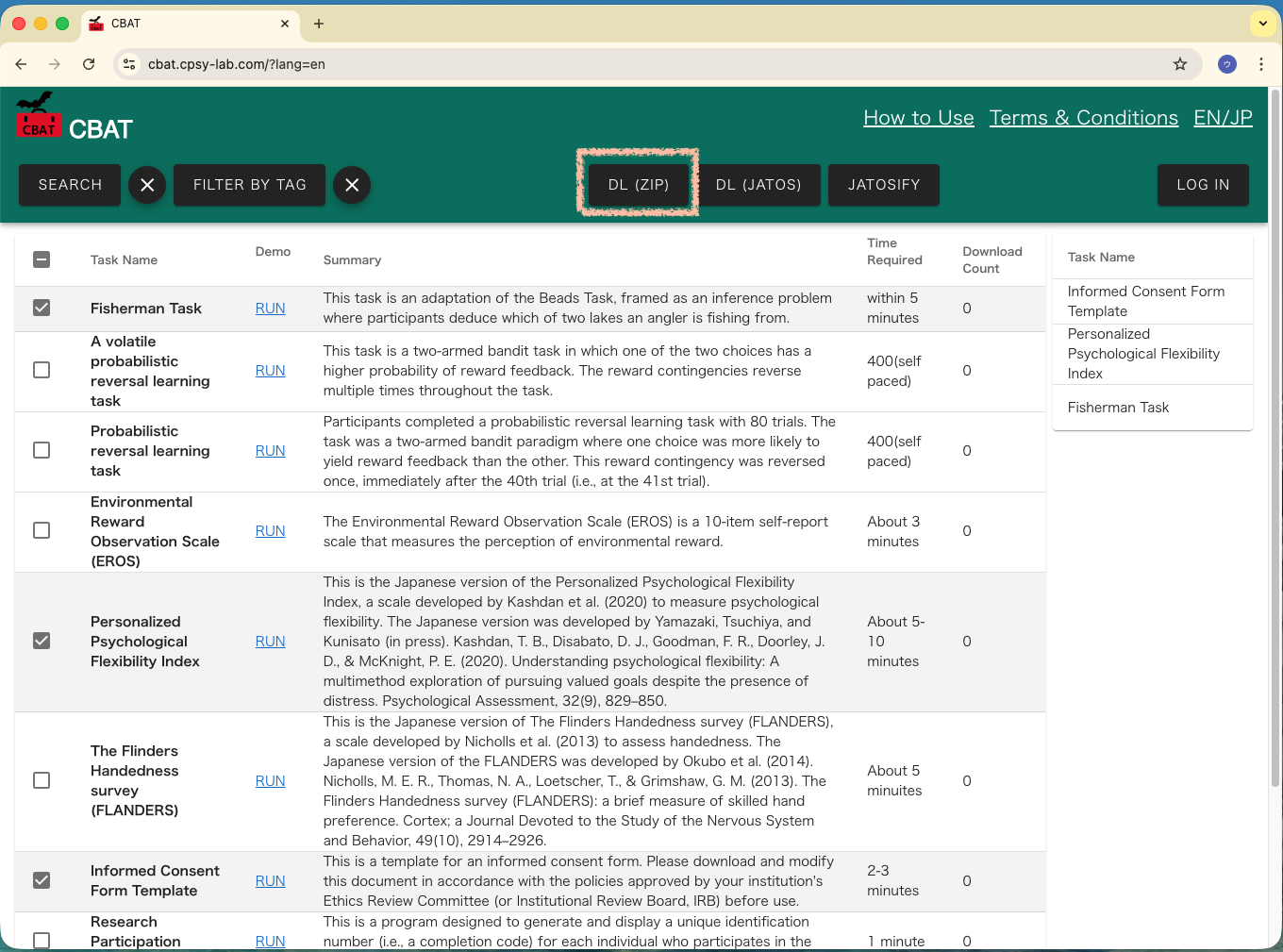
Once you have finished modifying the tasks, compress the folder into a ZIP file. Then, click the “JATOSIFY” button in CBAT.
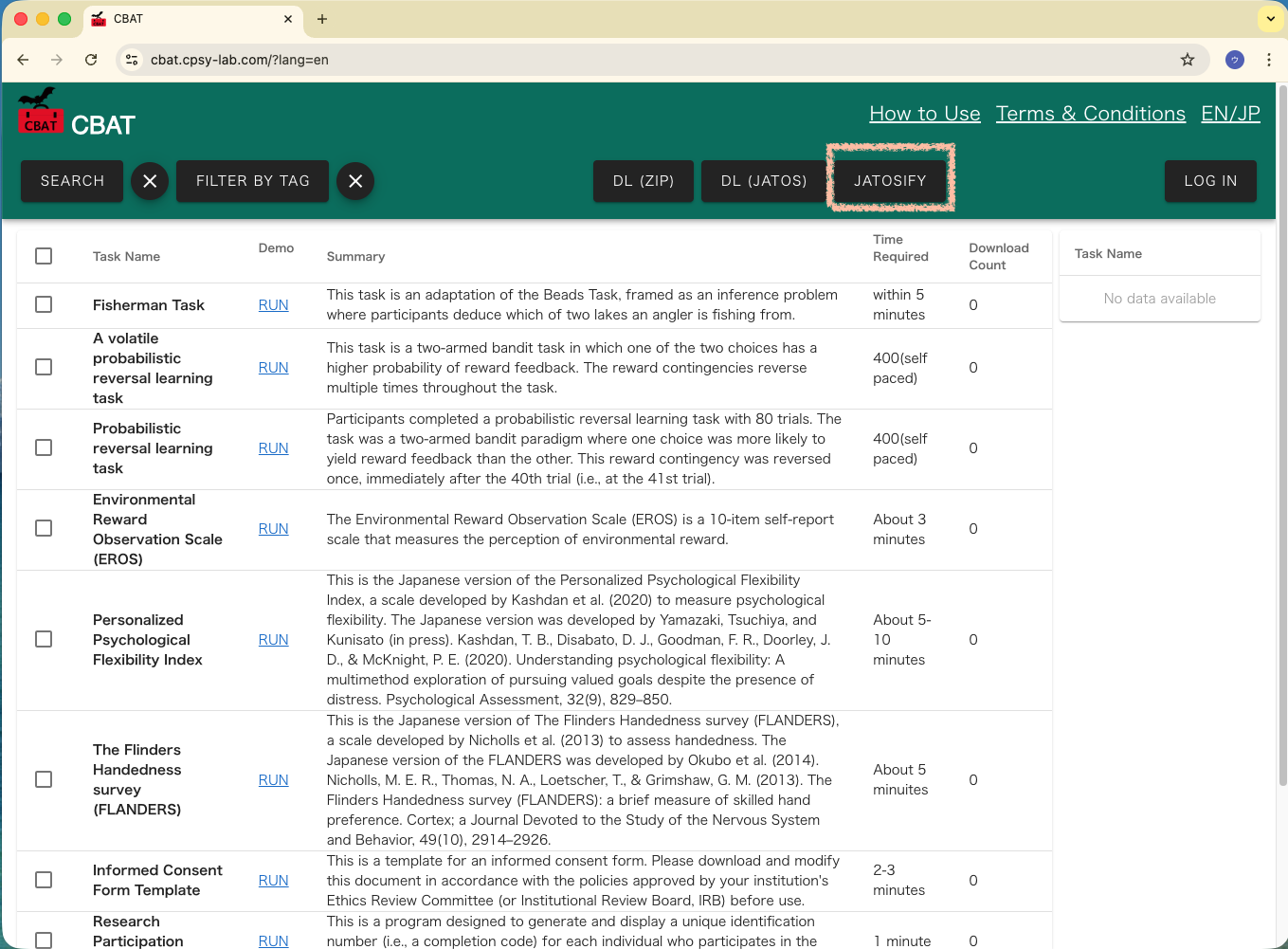
Enter the “Title” and “JATOS version”, then upload the ZIP file you just created. The file will then be converted into a JATOS-importable format (JZIP) and downloaded. Import the downloaded JZIP file into JATOS.
Note: As of October 2025, uploads and downloads may be very slow or time out due to server-related issues. We are planning to fix this in the future.